Professional Video Editing Tips & Techniques for 2026
Professional Video Editing Tips and Techniques for 2026
From raw footage to finished edit. The practical techniques, workflow habits, and creative decisions that separate work that holds attention from work that does not.
What Professional Video Editing Actually Is
BeginnerProfessional video editing is not defined by the software you use or the hardware you run it on. It is defined by the decisions you make: which shots to use, in what order, at what length, with what audio running underneath them. An editor with a clear understanding of storytelling, pacing, and viewer attention will produce professional work on any NLE. Someone without those skills will produce amateur work on the most expensive setup available.
The technical side matters — video editing involves converting raw footage into coherent and engaging content, and that process requires real technical knowledge about codecs, color spaces, audio levels, and export settings. But it is the editorial judgment underneath all of it that makes the difference between a video people watch all the way through and one they abandon halfway.
What makes editing professional
An honest perspective on learning curves
Professional editors regularly take ten or more hours of raw footage and reduce it to a finished cut measured in minutes. The challenge is not technical. It is learning to make confident decisions about what to cut, which requires watching a lot of well-edited work and editing a lot of your own projects. There is no shortcut for the hours.
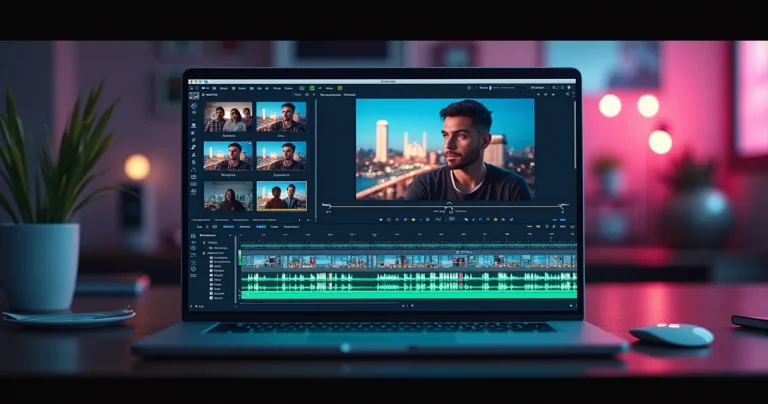
Choosing the Right Editing Software
IntermediateThe most important thing about choosing editing software is picking one and learning it deeply rather than switching between several. The fundamental workflows are similar across all major NLEs. Expertise in one transfers faster to another than starting from scratch, and the time spent learning a second software is usually better invested in editing more projects with the one you already know.
Software by experience level
DaVinci Resolve (free)
The strongest free NLE available. Handles basic cutting through professional color grading and audio mixing. The free version has no watermark and covers everything most editors will ever need. Used in commercial productions worldwide.
iMovie (Mac)
Good for learning the fundamental logic of timeline editing without interface complexity. Limited in features, but the concepts transfer directly to any professional NLE. A useful first step for Mac users before moving to a fuller tool.
CapCut Desktop
Originally a mobile app, the desktop version is now a capable entry-level editor. Best suited for social media content. Handles auto-captions, basic color and effects well for short-form work, though less suited for complex longer projects.
Adobe Premiere Pro
Industry standard in commercial production and content creation. Integrates directly with After Effects, Audition, and Photoshop. Subscription-based. Recent AI additions like Text-Based Editing and Generative Extend are genuinely useful for interview and dialogue content.
Final Cut Pro (Mac)
Fastest performance on Apple Silicon. Magnetic timeline speeds up rough cut assembly significantly. One-time purchase rather than subscription. Less cross-platform flexibility but excellent for Mac-based editors working at volume.
DaVinci Resolve Studio
The paid version of Resolve adds noise reduction, more AI tools, multi-user collaboration and higher-end output formats. A one-time purchase. If you are already comfortable with the free version and need the additional features, this is the most cost-effective professional upgrade available.
Avid Media Composer
The standard in broadcast television and feature film post-production. Expensive and has a steeper learning curve than other NLEs, but required knowledge for editors working in major studio or network environments. Collaboration and media management features are unmatched at scale.
Adobe After Effects
Not an NLE but an essential complement to any editing workflow. Used for motion graphics, titles, visual effects compositing, and anything that requires animation or frame-by-frame control that goes beyond what a standard editor handles.
Specialized audio: Adobe Audition / Logic Pro
For projects where audio quality is critical, a dedicated audio application produces results that any NLE’s built-in audio tools cannot match. Round-tripping between your NLE and a dedicated audio editor adds time but is worth it on any project where the audio mix is a significant deliverable.
Project Organization and Workflow
BeginnerDisorganized projects do not just waste time when you are hunting for clips. They accumulate problems throughout the edit: missed backups, broken media links, accidental overwrites, and the gradual friction of working in a system that was never set up properly. An organized project takes five to ten minutes to set up. Recovering from a disorganized one can cost hours.
1. Create a consistent folder structure
A reliable structure: one top-level project folder containing subfolders for Raw Footage, Audio, Music, Graphics, Project Files, and Exports. Some editors add a subfolder for Deliverables and one for Reference. The structure should be identical across all your projects so any project opened after a gap is immediately navigable.
2. Use a consistent file naming convention
Include the project name, scene or content identifier, and take or version number. For example: Interview_Client_T2 or Event_B-Roll_Day1_001. Avoid spaces in filenames, which can cause issues in some systems. Names that sort chronologically or by scene save significant time when assembling a rough cut.
3. Back up before you start editing
The 3-2-1 rule: three copies, on two different types of media, with one copy off-site or in the cloud. This sounds excessive until the day you need it. For ongoing projects, configure your NLE’s auto-save to every 5 to 10 minutes and keep project backups in a folder separate from the active project file.
4. Organize bins before cutting
Spend time in the Project Panel before touching the timeline. Sort clips into bins by camera, scene, or content type. Review rough selects and mark favorites. The time spent organizing here is paid back multiple times during the edit itself.
Project Time Estimator
Get a realistic time estimate before you start
Essential Professional Editing Techniques
IntermediateProfessional video editing requires specific techniques that become second nature with practice. None of them are complicated in isolation. The challenge is developing the judgment for which technique serves each specific moment in your edit.
Cut on action
Make the cut while the subject is in motion rather than before or after. The eye follows the movement and the cut becomes invisible. This is the most consistently useful technique in all of editing. It works in every genre.
J-cuts and L-cuts
Split edits where audio and video cut at different points. A J-cut brings in the audio from the next clip before the video cuts. An L-cut lets audio from the current clip continue after the video has moved on. Both make dialogue scenes feel natural rather than mechanical.
Use transitions deliberately
The straight cut handles most situations. Use a dissolve when time is passing. Use a fade to black when a major scene change needs breathing room. Every other transition type should have a specific reason. Decorative transitions pull viewer attention to the edit itself, which is almost never what you want.
Match cuts
Cut between two different shots that share similar frame composition, movement, or action. The visual similarity makes the cut read as intentional and can connect scenes across time, location, or characters in ways that feel sophisticated without requiring explanation.
Layer your timeline logically
Primary video on V1, B-roll on V2, graphics and titles above that. Primary audio on A1 and A2, music on A3 and A4, sound effects on A5 and A6. Consistent track architecture means you can navigate the timeline quickly and make changes without accidentally affecting the wrong element.
Learn the keyboard shortcuts that matter
J, K, L for playback control. I and O for marking selections. The cut or razor shortcut. Ctrl+Z for undo. These five categories, mastered to muscle memory, make more practical difference to editing speed than any other investment of time.
Universal keyboard shortcuts across NLEs
Visual Storytelling and Pacing
AdvancedPacing is the rhythm at which an edit moves through time and information. It is the accumulation of hundreds of small decisions about cut timing, shot length, and the relationship between what the viewer hears and what they see. Good pacing feels effortless to watch. Poor pacing announces itself, either by feeling sluggish or frantic in ways that are not intentional.
There is no universal formula for cut timing. The right length for any given shot depends on the emotional intent of the scene, the amount of information in the frame, the audio running under it, and what the viewer needs to process before the next cut. The practical approach is to watch your edits critically and pay attention to when you personally start to lose interest or feel rushed, then adjust accordingly.
Pacing principles by content type
Action and high-energy sequences
Shorter shots increase perceived energy and speed. Cuts that land on downbeats or audio accents amplify both. Visual continuity matters less than momentum. Reaction shots in the middle of action sequences break rhythm and reduce tension.
Emotional and dramatic scenes
Longer shots give the viewer time to process emotional information. Close-ups on faces at key moments carry the most emotional weight and can communicate what dialogue alone cannot. Cutting too quickly in emotional scenes prevents the feeling from landing.
Dialogue and interview content
Cut to B-roll during dialogue to give the viewer something to look at while continuing to hear the speaker. Cut away from the speaker slightly before they finish a sentence rather than after. L-cuts that show listener reactions while the speaker is still talking create the most naturalistic feel.
Narrative structure
Pacing should generally accelerate as tension builds toward a climax and slow down for resolution. Scenes that feel long early in a video feel longer than they actually are. The same scene placed after significant action feels appropriately paced. Context shapes the viewer’s perception of cut length.
Introduction (roughly the first quarter)
Establish context, characters, and situation. Moderate pacing that gives the viewer enough information to understand what follows. This is the foundation that makes the rest of the video work, not the place to rush through.
Development (the middle half)
Build conflict, complexity, or information toward the central point. Pacing can begin to accelerate as stakes or tension increase. Each scene or section should feel like it is moving toward something rather than marking time.
Climax (the peak moment)
The highest energy or emotional point in the video. Fastest pacing, most dynamic editing, peak audio energy. Everything before this has been building toward it. The length of this section is usually shorter than editors expect it needs to be.
Resolution (the closing)
Slower pacing to let the viewer process what happened. This is also where calls to action, credits, or reflection land most effectively. Ending abruptly is often more effective than extending a resolution past the point where it has something to say.
The pacing test most editors skip
Watch your edit with your eyes closed and just listen. If the audio is interesting and the information keeps moving, the pacing is probably close to right. If you start thinking about other things, the pacing has a problem. Most pacing issues are audible before they are visible.
Color Grading and Color Correction
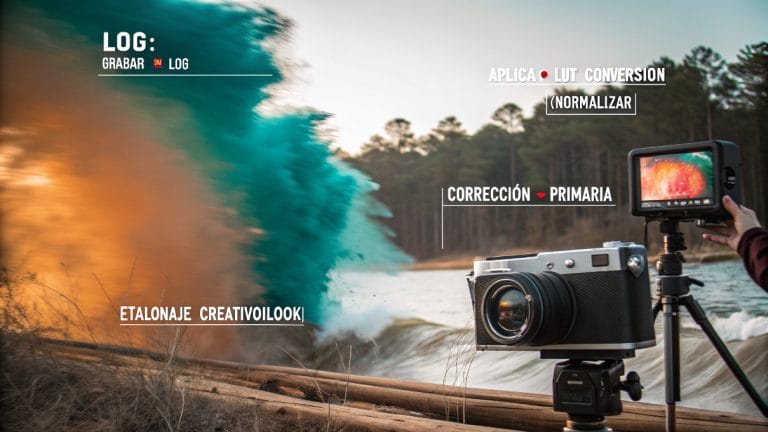
AdvancedColor grading is one of the most visually impactful post-production skills and one of the most frequently misunderstood. Most beginners jump straight to applying a LUT or pushing a stylistic look before the footage has been technically corrected. This produces results that look stylized on some shots and broken on others, because the creative grade lands differently on clips that are starting from different technical baselines.
The professional workflow always separates correction from grading. Correct first until every shot looks accurate and balanced. Then apply the creative grade to shots that all share the same technical foundation. The grade lands consistently because it is working with normalized material.
Step 1: Technical color correction
Using your scopes, bring exposure to a consistent range, balance the RGB channels so no color dominates in shadows or highlights, and normalize contrast. Use the Waveform for luminance and the RGB Parade for color balance. This is not optional and it is not the creative part. It is the foundation.
Step 2: Shot matching
After each clip is corrected, compare it to the others in the sequence. Clips shot from different angles, at different times, or with different cameras need to match well enough that cuts between them are not visually jarring. Use automatic color match tools as a starting point, then refine with manual adjustments and scopes.
Step 3: Creative color grading
Apply your stylistic choices to the matched, corrected material. This might be a LUT applied at reduced opacity, manual color wheel adjustments to push the mood of the footage, or selective color work on specific elements in the frame. Because you are working on corrected, matched footage, the creative grade will land consistently.
Step 4: Final review and export preparation
Check the color on a different screen if possible. Make sure blacks are not crushed and highlights are not blown. Verify the output color space matches your delivery requirement. Rec.709 for most web and broadcast delivery. DCI-P3 for cinema distribution.
Color grading checklist
The three scopes you need
Waveform shows luminance and contrast. RGB Parade shows color balance across the tonal range separately for each channel. Vectorscope shows saturation and hue. Together they give you a complete objective picture of your image that is independent of how your monitor is calibrated.
Color temperature and mood
Warmer color temperature in the orange-amber range tends to read as intimate, nostalgic, or comfortable. Cooler temperature in the blue range tends to read as clinical, modern, tense, or dramatic. These are tendencies rather than rules, but they are consistent enough across viewers to be useful in intentional grading decisions.
Take visual breaks
After 20 to 30 minutes of color work, your perception adapts to the look and stops reading it accurately. Look away from the screen for 30 seconds, look at a neutral surface, then look back. This reset makes color problems much easier to see. The timer is not optional if you want reliable results.
Audio Editing and the Final Mix
IntermediateViewer tolerance for imperfect video is higher than most editors expect. Viewer tolerance for imperfect audio is almost nonexistent. Background noise, inconsistent dialogue levels, a music track that fights the voice, or any distortion in the audio will cause viewers to stop watching regardless of the quality of the visuals. Audio is not secondary to picture in the hierarchy of viewer experience.
The good news is that basic audio discipline covers most situations: clean source recordings, consistent levels, and a simple three-element mix of dialogue, music, and sound effects each on dedicated tracks. The detailed work of noise reduction, compression, EQ, and mastering is valuable but the biggest gains come from getting the fundamentals right before any processing is applied.
Dialogue cleanup
Use noise reduction judiciously, no more than 30 to 50 percent reduction before the voice starts to take on an artificial quality. Adobe Audition’s Enhance Speech feature, Premiere’s AI voice enhancement, and DaVinci Resolve’s noise reduction all produce decent results on modestly noisy recordings. For heavily degraded audio, the realistic goal is usable, not perfect.
Level targets
Dialogue should peak around -12 to -18 dB in the mix. Music running under dialogue should sit at -20 to -25 dB. Sound effects depend on context but should not peak above the dialogue level in most cases. A limiter at -1 dB on the master track prevents clipping on export.
Keep elements on separate tracks
Dialogue on one set of tracks, music on another, sound effects on a third. This architecture lets you adjust each element independently and makes changes during revision significantly faster than tracks that mix multiple elements together.
Music selection and placement
Music should support the emotional tone of the scene it is under, not compete with it. When dialogue is present, music is a texture that sits behind the voice. When there is no dialogue, music can take a more prominent role. Abrupt endings of music tracks are almost always noticeable. Plan music edits so they end at natural phrase boundaries.
Sound effects and ambient audio
Ambient room tone under every scene prevents the silence that appears during cuts from sounding artificial. Sound effects at key moments add impact without requiring additional footage. Both should be mixed at levels that feel natural rather than added in as post-production embellishment.
Review the mix on multiple playback systems
A mix that sounds balanced on studio headphones often sounds bass-heavy on laptop speakers. Review on at least two different systems before delivery. Phone speakers or laptop speakers reveal mix problems that headphones hide. Earbuds reveal problems that full-size headphones can mask.
Audio review checklist before export
Frequently Asked Questions
DaVinci Resolve’s free version is the strongest starting point for most people. It handles basic cutting through professional color grading and audio mixing with no watermark and no cost. iMovie is a reasonable first step for Mac users who want simpler fundamentals before moving to a fuller NLE. The most important thing is picking one software and learning it deeply rather than switching between several.
Create a top-level project folder with subfolders for Raw Footage, Audio, Music, Graphics, Project Files, and Exports. Name files with a consistent convention that includes the project name, scene identifier, and take number. Replicate this structure inside your NLE using bins. Five minutes of organization at the start of each project is paid back multiple times during the edit and even more during any revision.
Color correction is technical: making footage look accurate with neutral whites, balanced exposure, and consistent blacks. Color grading is creative: giving corrected footage a specific look or mood. The workflow is always correction first, then grading. Applying a creative grade to uncorrected footage produces inconsistent results because the grade lands differently on clips that are starting from different technical baselines.
Audio quality directly affects viewer retention in ways that visual quality does not. Viewers regularly tolerate imperfect visuals, but poor audio, inconsistent dialogue levels, or background noise causes most people to stop watching quickly. Dialogue should peak around -12 to -18 dB. Music running under speech should sit at -20 to -25 dB. Reviewing your mix on both headphones and speakers before export catches problems that are only audible on one of them.
J, K, L for playback control (reverse, pause, forward). I and O for marking in and out points. Ctrl+Z or Cmd+Z to undo. Spacebar to play and pause. The software-specific cut tool shortcut. These five categories, mastered to muscle memory, improve editing speed more than any other single investment of learning time. Everything else can be picked up progressively as specific situations require it.
Watch your edit with your eyes closed and just listen. If the audio is interesting and moving forward, the pacing is probably close to right. If you start thinking about other things, the pacing has a problem. Specifically: cut on action to make transitions invisible, use L-cuts and J-cuts to make dialogue feel natural, and match your cut timing to the emotional content of each scene rather than applying a uniform cut length to everything.
For client work or broadcast delivery, yes. An uncalibrated monitor shows you colors that may look correct on your screen but land incorrectly elsewhere. For learning and personal projects, scopes compensate significantly. The Waveform and RGB Parade give you objective luminance and color balance information regardless of how your monitor is displaying it. Building the habit of reading scopes before trusting your eyes is more important than the monitor quality, especially when starting out.
A rough estimate for dialogue-heavy content is 5 to 10 editing hours per finished minute of video. This includes rough cut, fine cut, color work, audio mix and export. Interviews and talking-head content tend toward the lower end. Multi-camera events and narrative content toward the higher end. An organized project with well-labeled bins can be 30 to 40 percent faster to cut than unorganized footage, which is one practical reason why organization is worth the upfront time.
Where to go from here
The techniques in this guide become natural through repetition rather than study. Pick one section that addresses the weakest part of your current editing practice, apply it on your next project, and observe the result. Then do the same with the next area. Consistent practice on real projects builds skill faster than any amount of preparation. The world needs to see your work.
Need Professional Editing on Your Project?
If you are working against a deadline or want professional-level results without the learning curve, EdicionVideoPro handles everything from rough cut to final delivery. Tell us about your project.