How to Color Match Different Cameras — Shot Matching Guide
How to Color Match Different Cameras
Shot a project with multiple cameras and every clip looks like a different movie? This guide covers exactly how to fix that, from automatic tools to manual scope work, with the complete professional workflow we use at VideoEditPro.
The Problem Every Editor Runs Into
You shot everything perfectly. Then you opened your editor and realized each camera is living in its own color universe.
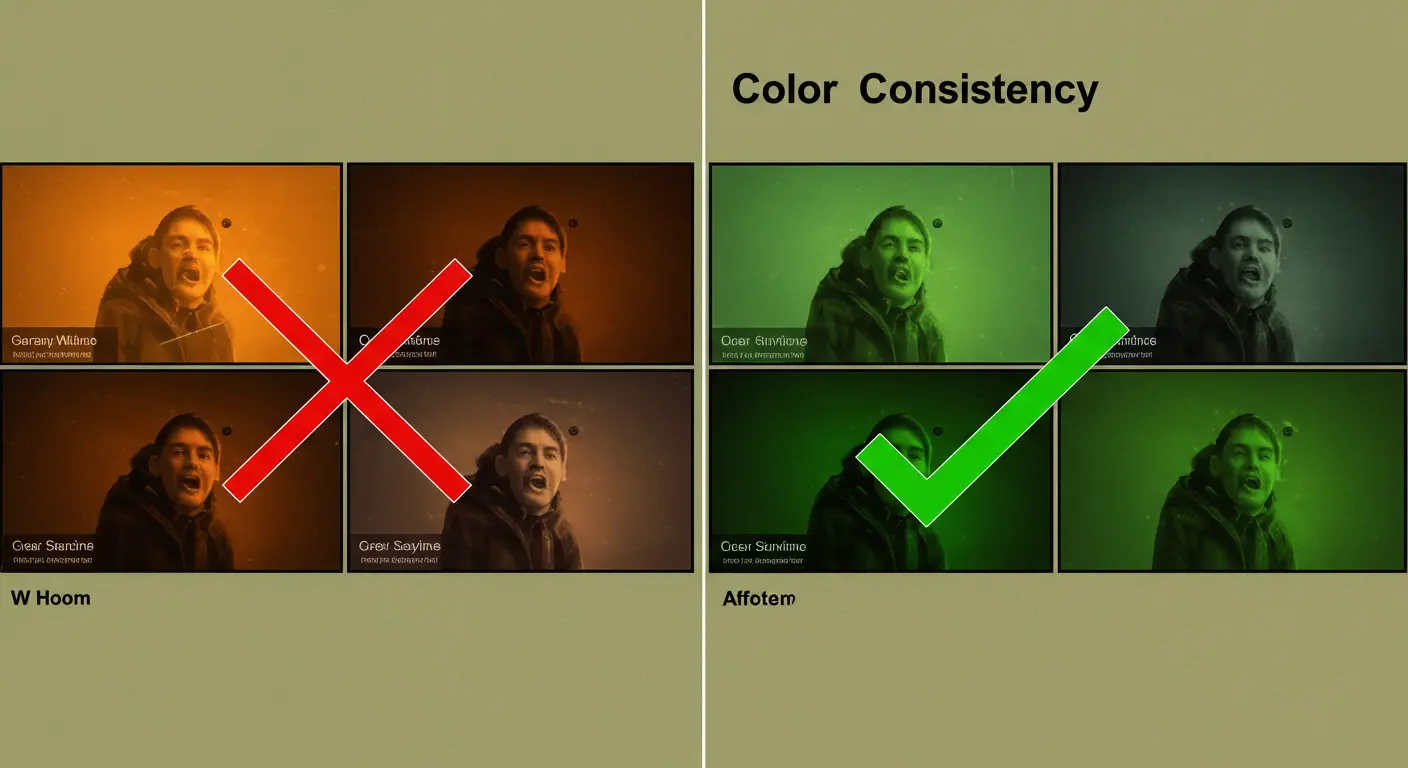
One camera is warm and golden. Another has a slight green cast. The phone you used for the wide shot looks completely different from the mirrorless on the close-ups. You did not change the location or the lighting. The cameras just see the world differently, and now it is your job in post to make them agree.
This process is called shot matching or color matching, and it is one of the fundamental skills in color grading. It is done before any creative grading work and it is what separates footage that looks like it came from a professional production from footage that looks like different cameras were used, because they were.
At VideoEditPro, this is part of every multi-camera project we handle. This guide covers why cameras produce different colors, how to prevent the worst of it on set, and how to fix it in post with both automatic tools and manual scope work.

⚡ Need a quick answer right now?
DaVinci Resolve: Right-click secondary clip, select “Color Match”, point to hero clip.
Premiere Pro: Open Lumetri Color, use the “Match” button with your reference frame visible.
Final Cut Pro: Select clip, go to Enhancements menu, choose “Match Color”.
These get you 80 to 90 percent there. Manual fine-tuning with scopes finishes the job.
Why Each Camera Sees the World Differently
Understanding the cause makes fixing it much more straightforward.
Different sensors and color science
Sony, Canon, Blackmagic, and Fujifilm each process color differently at the sensor level. This is called color science and it is baked into how the camera interprets light. Two cameras shooting the same scene under identical settings will still produce measurably different color.
Different color profiles
One camera recording in a standard picture profile and another recording in LOG or a flat profile is like comparing a finished print with an unprocessed negative. Before any matching can happen, both cameras need to be in the same color space.
Mismatched settings
Different white balance values, different ISO settings, different picture profiles. Even small differences compound. A 200K difference in white balance between two cameras creates a visible color cast that reads immediately on a cut.
Lens character
Lenses have optical personality. Older glass tends toward warmth. Some modern lenses are neutral to slightly cool. Zoom lenses behave differently from primes at equivalent focal lengths. The lens choice affects color in ways that cannot be eliminated in camera.
Uneven lighting per angle
The camera facing the window gets more natural light than the camera angled away from it. The human eye compensates for this automatically. Cameras do not. What looks fine on set creates a visible exposure and color difference in the edit.
Worth knowing: Even two cameras of the same model and firmware can produce slightly different color. Sensor variation between individual units is a real phenomenon. This is why production-level work always includes a color chart shot for reference.
Prevention: What to Do Before You Shoot
An hour on set saves several hours in the edit. These are the habits that make shot matching dramatically easier.
???? Pre-Production Checklist
These decisions on set directly determine how much work waits for you in post.
???? Use cameras from the same family
Matching two Sony A7 bodies is far easier than matching a Sony to a Canon. If you have options, choose cameras with similar sensor generations and color science.
⚙️ Lock identical settings across all cameras
Same FPS, same resolution, same color profile, and most critically, the same custom white balance. Take a reading in your shooting location and set every camera to that exact value manually.
???? Record a color chart from every angle
At the start of each setup, film a color chart or 18% gray card with all cameras simultaneously. This creates an objective reference you can use later to verify matching accuracy.
???? Document every camera’s settings
Write down or photograph the settings for each camera body. If you need to reshoot pickup shots days later, you can replicate the original setup exactly rather than guessing.

✅ Interactive Pre-Shoot Checklist
Check each item as you complete it on set
The Professional Workflow
Shot matching always happens after picture lock, before any creative grading. This is the order that keeps things from compounding into bigger problems.
Choose your hero shot
Pick the clip from your primary camera that has the best exposure, the most accurate white balance, and the most natural skin tones if people appear. This clip becomes the absolute reference. Everything else needs to match this, not the other way around. You are not averaging between cameras. You are choosing a north star and navigating every other clip to it.
Apply primary correction to the hero shot
Before matching anything, get the hero clip into a clean, calibrated state. Using your scopes, bring blacks to 0 on the Waveform, whites to near 100, and balance the RGB channels so no single channel dominates in the shadows or highlights on the RGB Parade. This is the baseline everything else will be measured against. If the hero is off, every clip matched to it will be off by the same amount.
Match secondary cameras to the hero
Now apply matching to every other angle. Start with automatic tools in your software to get most of the way there quickly, then use scopes and color wheels to fine-tune what the automatic pass missed. Work through clips in scene order so you can catch any accumulated drift before it becomes obvious in the edit.
Verify consistency across cuts
Play through the edit and watch every cut between cameras. If a cut between angles is visually jarring even after matching, it usually means the luminance levels differ slightly. Go back to the scope, compare the Waveform readings side by side, and adjust until the levels align. This step catches issues that look fine on individual clips but reveal themselves in the flow of the edit.
Apply global creative grading
Only after all clips are visually consistent, apply the final creative look. This might be a LUT, a grade that shifts the mood, or specific stylistic choices. Because everything is matched, the creative grade will land the same way across all cameras. If you grade before matching, the grade will amplify the differences between cameras rather than sitting evenly across them.
???? Track Your Progress
Click each step when you complete it in your current project
Hero shot selected and noted
Primary camera clip with best exposure and white balance chosen as reference
Hero clip corrected with scopes
Blacks, whites and RGB balance adjusted to a calibrated neutral baseline
Secondary clips matched
Automatic match applied and manual fine-tuning completed per clip
Consistency verified across cuts
Played through edit and confirmed no jarring color jumps between cameras
Creative grade applied
Final look or LUT applied globally on top of matched footage
⏱️ Time Estimator
Get a realistic estimate for your shot matching session before you start
Estimated time
Automatic Tools, Manual Scopes, or Both?
Neither approach is the right answer on its own. Here is when each one earns its place in the workflow.
Automatic Color Match Tools
Automatic matching analyzes the tonal and color distribution of your reference clip and applies corresponding corrections to the secondary clip. Done in one click. The results vary depending on how different the source material is, but in most multi-camera scenarios you can expect 80 to 90 percent of the work handled immediately.

DaVinci Resolve
The strongest automatic matching of the three major NLEs. In the Color page, right-click the secondary clip’s thumbnail and select Color Match. Resolve analyzes both clips and applies corrections automatically. Works best when both clips are in the same color space.
Adobe Premiere Pro
In the Lumetri Color panel, the Comparison View lets you see your reference and working clip side by side. The Match button in the Curves section applies automatic adjustments. The results are less accurate than Resolve on average, but they are a solid starting point.
Final Cut Pro
Select the clip you want to adjust, then go to Enhancements and choose Match Color. Click the reference clip in the timeline and FCP applies the match. The Color Board and Color Wheels are available for manual follow-up work.
When automatic falls short: Automatic tools struggle when cameras have significantly different dynamic range, when one clip is highly compressed, or when the content of the two clips is very different (an exterior and interior shot, for example). In those cases, manual work is more reliable than trying to force the algorithm.
Manual Matching with Scopes
Manual matching gives you complete control and does not depend on the algorithm making good guesses about your content. It takes longer but produces more reliable results, especially when footage is stylized, heavily compressed, or comes from very different sources. The tools you need are three scopes.

Step 1: Match luminance with the Waveform
Look at the Waveform scope for both clips. Your blacks should sit at the same level, your midtones at the same level, your highlights at the same level. Use the Lift, Gamma and Gain controls (or Shadows, Midtones, Highlights) to bring them into alignment. Get this right before touching color.
Step 2: Match color balance with the RGB Parade
The RGB Parade shows the Red, Green and Blue channels separately across the tonal range. Compare your secondary clip to the hero. If the blue channel is higher in the shadows, there is a blue cast in the darks. Lower the blue in the shadows using the color wheel. Work through shadows, midtones and highlights separately until the three channels track together.
Step 3: Match saturation with the Vectorscope
The Vectorscope shows the hue and saturation of your image as a cluster around the center. A larger, more spread-out cluster means more saturation. Compare the cluster size between your hero and secondary clips and adjust the saturation until they match. Skin tones in particular should fall on or near the skin tone line on the Vectorscope.
The listening test equivalent for color
After any significant manual adjustment, look away from the screen for five seconds, look at something neutral, then look back. If your eye immediately goes to a color problem, it is still there. If the image feels natural and nothing jumps out, the balance is close. This reset clears the adaptation your eyes build up while staring at the same clip.
The Hybrid Approach
This is how most professional colorists work in practice. Automatic tools handle the broad strokes quickly. Manual scope work handles the precision finishing. The combination is faster than pure manual and more accurate than pure automatic.
The VideoEditPro Hybrid Workflow
- Run the automatic color match tool to handle 80 to 90 percent of the correction
- Open your scopes and compare the secondary clip to the hero on Waveform and RGB Parade
- Identify what the automatic pass missed: a lingering blue in the shadows, slightly different contrast, saturation that is still off
- Use manual color wheel adjustments to close that remaining gap
- Play the cut between the hero and secondary clip several times and check for any remaining visual jump
On typical multi-camera dialogue content, this approach takes 10 to 15 minutes per secondary clip and produces results that are indistinguishable from fully manual work.
Specific Steps by Software
The concept is the same in every NLE. The menu paths and shortcuts differ.
- Go to the Color page
- Right-click the secondary clip in the filmstrip
- Select Color Match and click the hero clip as reference
- Fine-tune with Color Wheels in the Primaries panel
- Use Gallery Stills to save and compare grades
- Shortcut for side-by-side comparison: P key
- Open the Lumetri Color panel
- Enable Comparison View to see reference and working clip
- Navigate to the Curves section
- Click Match with your reference frame visible
- Fine-tune using HSL Secondary or Color Wheels
- Use Lumetri Scopes panel for objective verification
- Select the clip you want to match in the timeline
- Go to Enhancements menu, choose Match Color
- Click the reference clip to apply the match
- Use Color Board or Color Wheels for manual adjustments
- Open Video Scopes from the Window menu to verify
- Use Color Curves for channel-specific corrections
- Select the clip in the timeline
- Open the Color panel on the right
- Use Color Wheels to adjust Lift, Gamma, Gain
- Manual matching only (no automatic color match function)
- Use the built-in histogram for luminance reference
- Copy color adjustments: right-click, Copy Effects, paste to other clips
Professional Tips From Years of Shot Matching
These are the habits that separate colorists who struggle with shot matching from those who move through it efficiently.
- ????Always luminance first, color second, saturation third. Changing exposure shifts how color reads. Locking luminance first means your color corrections are accurate and stay that way.
- ????Trust scopes over your eyes, especially after 30 minutes. Color perception adapts continuously. After extended work, your eyes are no longer giving you reliable information about what you are looking at.
- ????️A calibrated monitor removes one variable. You do not strictly need one to learn, but for client work where accurate color delivery matters, an uncalibrated display is a liability.
- ????Check the cut, not just the individual clip. A clip can look right in isolation and still create a jarring jump when you play it in context. Always verify matching by playing through the actual edit, not just comparing stills.
- ????Save a reference still from your hero clip. Most color tools let you save a gallery still from the hero. Having it visible while working on secondary clips removes the need to constantly switch back to compare.
Common Mistakes in Shot Matching
Most problems in shot matching come down to the same handful of errors. Knowing them in advance saves a lot of frustrating re-work.
Grading before matching
Applying a creative look or LUT before matching is done means the grade amplifies the color differences between cameras rather than sitting evenly across them. Always match first, then grade.
Trusting eyes over scopes
Visual perception adapts constantly. After 20 minutes of looking at a clip with a blue cast, the blue starts to look normal. Scopes show you objective data. They do not adapt. Use them to verify every significant decision.
Skipping the luminance step
Jumping straight to color balance while luminance is still mismatched creates compounding problems. A clip that is a stop brighter than the hero will read differently even after color balance is fixed. Luminance must be right first.
Chasing impossible accuracy
A phone camera and a cinema camera will not match pixel-perfectly. The goal is a visually acceptable cut between them, not technical identity. Know when the match is good enough and move on.
Matching in the wrong color space
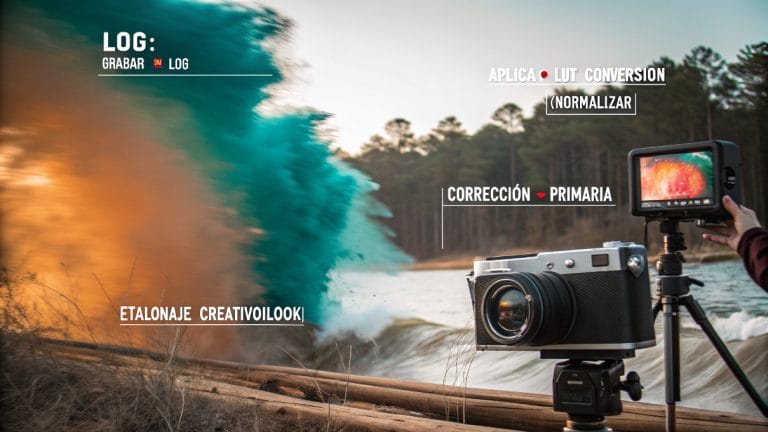
If one camera is in LOG and another is in standard Rec.709, matching before converting them to the same color space produces inaccurate results. Normalize all footage to the same color space first, then match.
Not verifying in the actual edit
Checking clips in isolation misses problems that only appear at the cut point. Always play through the actual edit after matching to catch any remaining visual jumps between angles.
Test Your Shot Matching Knowledge
Four questions on what you just read. See how much landed.
1. What is the correct order for manual shot matching corrections?
2. Which scope gives you the most reliable information about color balance?
3. When should you apply a creative grade or LUT?
4. What is the main purpose of recording a color chart on set?
Questions We Hear All the Time
After years of multi-camera projects and color work, these are the questions that come up most consistently.
It happens on most real productions. The manual process with scopes still works. Look for neutral objects that appear in multiple camera angles and should read as the same color: white walls, skin tones, a grey couch, a tablecloth. Use those as your visual reference while scopes give you the objective numbers to hit. You will be slightly more reliant on judgment, but experienced use of the RGB Parade can compensate for a missing chart in most cases.
Yes, as a starting point. DaVinci Resolve’s Color Match is the most accurate of the mainstream options and regularly gets to 85 to 90 percent in one click on typical multi-camera content. Premiere Pro’s match is less consistent but useful. Final Cut’s version sits somewhere in between. Think of automatic tools as doing the rough framing work. Manual scopes are for the final precision. Using them together is the approach most working colorists take.
Perfect technical matching is not realistic. The differences in dynamic range, sensor size and codec quality between a phone and a cinema camera are fundamental. But a good colorist can get them close enough that cuts between them are not visually jarring. The goal is a match that reads as consistent in the flow of the edit, not identical pixel data. Focus on matching overall brightness, color temperature and saturation, and you will usually get to an acceptable result.
With the hybrid approach at intermediate skill level, plan for 10 to 20 minutes per secondary clip. Beginners need more time, around 25 to 30 minutes, while an experienced colorist can move through standard multi-camera dialogue content in 8 to 12 minutes per clip. Footage that is more technically challenging, like mixing phone and cinema cameras or dealing with heavy LOG conversion, adds time regardless of skill level.
For work that will be delivered to clients or broadcast, yes. An uncalibrated monitor introduces a variable you cannot control, and colors that look correct on your display may look very different on a calibrated reference. For learning and personal projects, scopes compensate significantly. The Waveform and RGB Parade give you objective data about your image regardless of how your monitor is displaying it. Numbers do not lie even when the display does.
Color matching is a technical process: making all clips in a multi-camera edit look like they came from the same camera under the same conditions. Color grading is a creative process: giving your footage a specific look, mood or stylistic treatment. You always do color matching first so that when you apply a creative grade, it lands consistently across all cameras. Grading before matching causes the grade to amplify color differences rather than sitting evenly.
You need three scopes for complete picture: the Waveform shows overall luminance and contrast, with the image represented as a graph from left to right. RGB Parade splits the image into red, green and blue channels separately so you can see imbalances in shadows, midtones and highlights independently. The Vectorscope shows hue and saturation as a cluster, where the center is neutral grey and distance from center represents saturation. Together, these three scopes give you everything you need to make objective matching decisions without relying on your eyes.
LUTs are useful for color space conversion, like bringing LOG footage into Rec.709, but they are not a substitute for shot matching. Apply a LUT first to normalize the footage to the same color space across all cameras, then do the actual matching work on that normalized baseline. Using a creative or stylistic LUT as a shortcut for matching usually makes things worse because it applies the same transformation to cameras that are already starting from different places.
Luminance first, color balance second, saturation third. The reason order matters is that adjusting exposure changes how color reads. If you fix color balance first and then discover the luminance needs a significant change, your color correction is now slightly off and needs to be redone. Locking luminance first means your subsequent color decisions are stable and accurate. Saturation is last because it is partly a function of both luminance and color balance being correct.
Trusting their eyes before checking the scopes. Visual perception adapts surprisingly quickly. After 20 minutes of working on a clip with a slight color cast, the cast starts to look normal and it becomes harder to see whether matching is actually working. The practical fix is a two-second reset: look away from the screen, look at a neutral white or grey surface, then look back. This clears the visual adaptation and makes problems much easier to see. Then verify with scopes before making any significant change.
Need Your Multi-Camera Project Matched Professionally?
Shot matching is technical work that takes experience to do quickly and accurately. At VideoEditPro we do this on every multi-camera project we handle. If you would rather focus on your content while we handle the color consistency, we can have your footage matched and ready for your creative approval within 48 to 72 hours.
What’s included in our shot matching service:
- ✅ Technical analysis of all source footage
- ✅ Primary correction on calibrated monitors
- ✅ Automatic matching plus manual scope refinement
- ✅ Consistency verification across all cuts
- ✅ Delivery in your required format and color space
- ✅ Revision rounds included
- ✅ Optional creative grade on top
- ✅ Technical support after delivery
VideoEditPro
Professional video editing and color grading since 2014