Premiere Pro for Beginners: Your Easy Start Guide
Getting Started with Adobe Premiere Pro: A Beginner’s Complete Guide
The interface looks complicated on day one. It stops looking that way faster than you think. Here is everything you need to edit your first video, understand the workspace, and actually enjoy the process.
Adobe Premiere Pro is an industry-standard video editing software used in everything from YouTube channels to feature films and broadcast television. It sits at the center of the Adobe Creative Cloud ecosystem, meaning it connects directly with After Effects for motion graphics, Audition for audio work, Photoshop for still image editing, and Lumetri for color grading, all without leaving the project.
The first time you open it, the workspace can feel like a cockpit. Multiple panels, dozens of menus, hundreds of keyboard shortcuts. But here is the practical reality: you can cut your first real video using about five percent of what the software offers. The rest exists for specific situations you will encounter naturally as you build experience.
This guide walks you through the essentials in the order they actually matter: why Premiere Pro, whether your computer can run it, what each panel does, how to cut your first video start to finish, the shortcuts that save the most time, and the AI features that arrived in recent versions that genuinely change how certain types of editing work.
Why Choose Premiere Pro?
There are several professional video editors on the market. Here is where Premiere Pro earns its position and where it might not be the right fit.
Industry standard across markets
Most commercial studios, broadcast networks, and post-production houses run Premiere Pro. Learning it means your skills transfer directly into professional environments without a software transition.
Adobe Creative Cloud integration
If you already use Photoshop, After Effects, or Audition, Premiere connects to them through Dynamic Link. Change a graphic in Photoshop and it updates in your Premiere timeline without re-importing anything.
Handles any project scale
The same software used to cut a 60-second Instagram Reel handles a multicam feature film edit. You never outgrow it. The workflow scales with the complexity of what you are making.
Serious AI tools in 2025-2026
Text-based editing, Generative Extend, automatic captions, smart reframing and AI-powered color matching have made workflows that used to take hours significantly faster for beginners and professionals alike.
Constant updates
As a subscription product, Premiere receives regular updates. Features like Speech to Text, Remix, and Auto Reframe arrived as free updates for existing subscribers over the past two years.
When it might not be right for you
If you are primarily on Mac and want the fastest native performance, Final Cut Pro is faster on Apple Silicon. If budget is the main concern, DaVinci Resolve offers a powerful free version. Premiere requires an ongoing subscription.
System Requirements: What Your Computer Needs
Premiere Pro will run on modest hardware, but the editing experience improves significantly with a stronger machine. Here is what matters in practice.
| Component | Minimum | Recommended (1080p) | Recommended (4K) |
|---|---|---|---|
| CPU | Intel 6th Gen / AMD Ryzen 1000 | Intel 10th Gen / Ryzen 5000 | Intel 12th Gen+ / Ryzen 7000+ |
| RAM | 8 GB | 16 GB | 32 GB or more |
| GPU | 2 GB VRAM | 4 GB VRAM | 8 GB VRAM (NVIDIA or AMD) |
| Storage (OS + App) | Any drive with space | SSD for OS and cache | NVMe SSD for everything |
| Storage (Media) | HDD works | SSD preferred | Fast SSD or RAID |
| OS | Windows 10 / macOS 13 | Windows 11 / macOS 14 | Windows 11 / macOS 15 |
The single biggest performance upgrade: Moving your media files from a spinning hard drive to an SSD. Premiere spends most of its time reading video data from storage. Faster storage translates directly into smoother playback, faster scrubbing and shorter export times, often more noticeably than a CPU upgrade.
If your machine is on the lower end, you have one very practical option: proxy editing. Premiere can automatically create lower-resolution copies of your footage, called proxies, that it uses during the edit. When you export, the original high-quality files are used. This makes 4K editing smooth on hardware that would otherwise struggle, and it is built directly into Premiere’s ingest workflow.
A Tour of the Interface
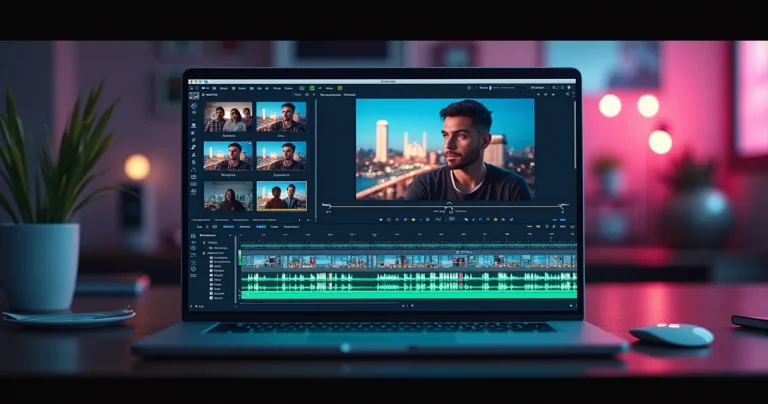
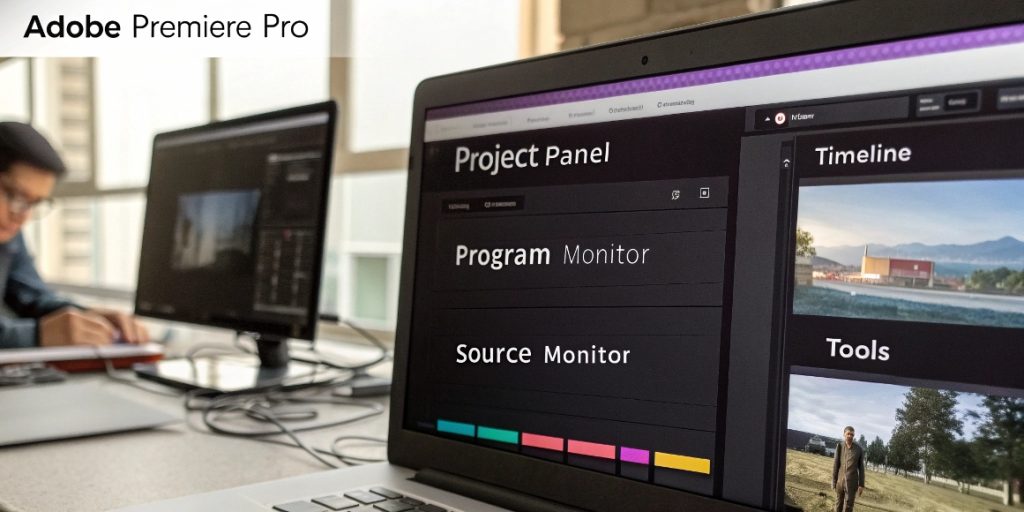
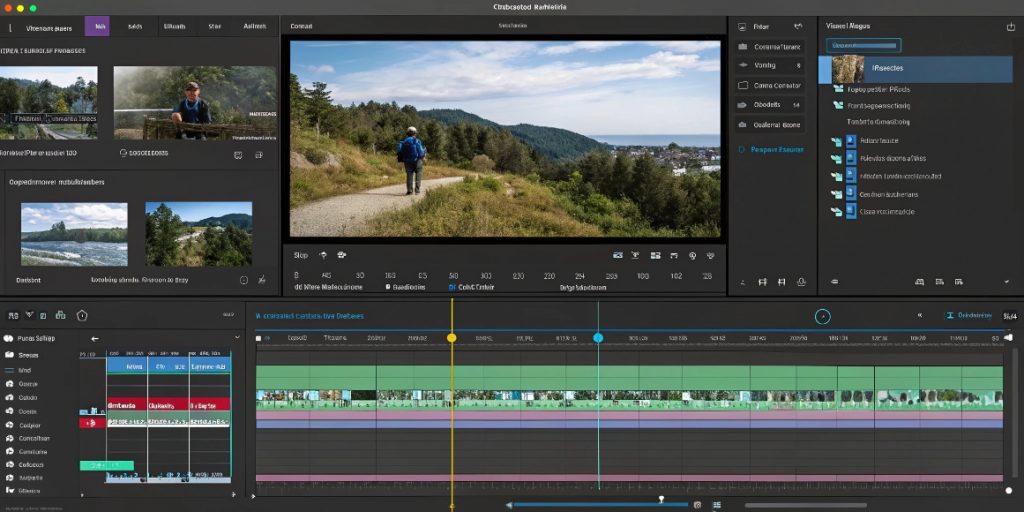
Premiere’s workspace is divided into panels. Each one has a specific job. You do not need to use all of them immediately, but knowing what each one is for removes a lot of confusion.
Project Panel
Every file you import into your edit appears here. Think of it as the filing cabinet for your project. Create Bins (folders) to organize footage by camera, scene, or type of content.
Source Monitor
When you double-click a clip in the Project Panel, it opens here. This is where you review and mark in and out points before placing the clip on the timeline. Saves time compared to trimming on the timeline directly.
Program Monitor
Shows what your finished edit looks like at the current playhead position. This is your output preview. What you see here is exactly what will export.
Timeline
Where the actual editing happens. Clips sit on video tracks (V1, V2, V3) and audio tracks (A1, A2). Earlier clips on higher tracks appear on top visually. Most of your time in Premiere is spent here.
Tools Panel
Accessed via the narrow vertical strip or keyboard shortcuts. The Selection Tool (V) and Razor Tool (C) handle 90 percent of what most editors need. The rest are available when specific situations call for them.
Effect Controls
When you select a clip, its properties appear here: position, scale, rotation, opacity, audio volume. This is also where applied effects show up and can be adjusted with keyframes for animation.
Essential Graphics
Create and edit titles, lower thirds, and graphics directly inside Premiere without switching to After Effects. Motion Graphics Templates (.mogrt files) imported from Adobe Stock also appear and are edited here.
Lumetri Color
The full color correction and grading workspace. Basic Correction handles white balance and exposure. Curves, HSL Secondary and Color Wheels give you precise creative control. Lumetri Scopes give you objective measurements.
Audio Track Mixer
Controls the volume and panning of each audio track in the timeline simultaneously. Useful for mixing music, dialogue, sound effects and ambient audio to a balanced final mix.
Workspaces: Premiere has preset workspace layouts for Editing, Color, Audio, Graphics, Libraries and more. Switch between them using the tabs at the top of the interface. Each rearranges the panels into the most useful configuration for that type of work. You can also save custom workspace layouts once you know what you prefer.
Editing Your First Video: Step by Step
This is the complete workflow from empty project to exported file. Every step is something you will repeat on every project you ever edit in Premiere.
Create a new project
Open Premiere Pro and click New Project on the home screen. Name your project something you will recognize later and choose a save location. Keep the project file on your fastest drive, ideally the same SSD where your media lives. Leave all other settings at their defaults for now.
Import your media
Double-click in the empty area of the Project Panel to open the import dialog, or go to File > Import. Select all the files you need. They will appear in the Project Panel as icons. Right-click in the panel to create Bins and drag clips into them to keep things organized from the start.
Create a sequence
Drag your primary clip from the Project Panel directly to the timeline. Premiere will ask if you want to match the sequence settings to the clip. Say yes. This creates a sequence that automatically matches your footage format, frame rate, and resolution, which is almost always what you want for a first project.
Arrange and cut your clips
Use the Selection Tool (V) to drag clips into position on the timeline. Use the Razor Tool (C) to cut a clip at the playhead position. Trim clips by hovering over their edges until the trim cursor appears, then drag. To remove a clip and close the gap it leaves, right-click and choose Ripple Delete, or use Shift+Delete.
Add music and adjust audio
Import your audio file and drag it to an audio track below your video. To adjust the overall volume of a clip, select it and look at Effect Controls > Volume > Level. You can also click and drag the horizontal white line that runs through the audio clip directly in the timeline to raise or lower volume visually. Add a fade by right-clicking the clip’s corner and choosing Apply Audio Transition.
Add titles and graphics
Open Window > Essential Graphics. In the Edit tab, click New Layer and choose Text. A text box appears in the Program Monitor. Type your title, then adjust font, size, color and position in the panel on the right. The title clip appears on the timeline as a graphic clip that you can move and resize like any other clip.
Export your finished video
Go to File > Export > Media, or press Ctrl+M (Cmd+M on Mac). In the export dialog, set Format to H.264 and choose a Preset. For YouTube or general online sharing, the YouTube 1080p HD preset is a reliable starting point. Set your output file name and location, then click Export. For longer projects, use the Export to Media Encoder option to keep editing while the export runs in the background.
Essential Keyboard Shortcuts
The editors who work fastest in Premiere rarely touch the mouse for routine actions. These are the shortcuts that make the biggest practical difference from day one.
Customize your shortcuts: Every keyboard shortcut in Premiere Pro can be changed. Go to Edit > Keyboard Shortcuts (Ctrl+Alt+K / Cmd+Alt+K) to see all shortcuts and reassign any of them. If you are coming from Final Cut Pro or DaVinci Resolve, there are preset keyboard layouts available that match those applications.
AI Features Worth Knowing in 2026
Adobe has been adding AI-powered tools to Premiere consistently since 2023. Some are genuinely useful for beginners. Here is what each one does and when it earns its use.
Text-Based Editing
Premiere automatically transcribes your footage and shows the transcript in a panel. You can then edit your video by editing the text: delete a sentence from the transcript and the corresponding video is removed. This is genuinely transformative for interview and talking-head content, where rough cuts that used to require scrubbing through hours of footage can now be done by reading and deleting text.
Generative Extend
Extends a clip beyond its original end point by generating new frames that match the content. Useful when a clip is slightly too short for a cut and you do not have additional footage. Works best on clips with minimal movement. Still a fairly new tool and works better on some types of footage than others, but it solves a specific problem that previously had no good solution.
Enhance Speech
A one-click tool that analyzes dialogue audio and applies noise reduction and clarity improvements automatically. Found in the Essential Sound panel under Dialogue > Enhance Speech. It removes background noise and improves voice intelligibility on a quality level that previously required manual work in Adobe Audition. For beginners dealing with imperfect recording conditions, this tool alone is worth knowing about.
Auto Reframe
Automatically reframes a horizontal video for vertical formats by tracking the subject and keeping them centered in the new aspect ratio. Found under Sequence > Auto Reframe Sequence. Produces usable results on most talking-head content and simple subjects. Saves the manual keyframing work that vertical social media versions of horizontal content would otherwise require.
Automatic Captions
Generates subtitles from your audio using speech-to-text, places them on the timeline as editable caption clips, and lets you style them in the Essential Graphics panel. Accuracy is good for clear dialogue in standard accents. For social media content where captions significantly increase reach, this removes what used to be a tedious manual task.
Remix
Analyzes a music track and intelligently reshuffles its segments to fit a specified duration while maintaining musical structure. Drag a music clip to the Remix bar in Essential Sound, set a target duration, and Premiere rearranges the track to fit. Useful for fitting licensed music to a video that does not match the original track length.
On AI accuracy: All of these tools produce results that need review. Text-Based Editing transcriptions have errors on accents, proper nouns and technical terms. Generative Extend sometimes produces visible artifacts. Enhance Speech occasionally over-processes. Use them as starting points that save time, not as finished results that skip review.
Common Beginner Mistakes
These are the problems that come up most consistently in the first weeks of learning Premiere Pro. Knowing them in advance saves a lot of frustration.
Not organizing media before editing
Dropping all your clips into the Project Panel with no bins and no naming structure works fine for a two-minute video. On anything longer or more complex, it creates a situation where finding a specific clip becomes genuinely difficult. The habit of organizing before cutting pays dividends on every project.
Saving infrequently
Premiere has autosave and creates project backups, but neither is a substitute for Ctrl+S after any significant change. The autosave interval is configurable and defaults to 15 minutes. Set it to every 5 minutes in Preferences > Auto Save, and still press Ctrl+S manually whenever something works the way you wanted it to.
Ignoring GPU acceleration
Check that hardware acceleration is enabled: File > Project Settings > General > Renderer should say Mercury Playback Engine GPU Accelerated, not Software Only. The software mode is dramatically slower for playback and export and is usually the cause when a capable computer runs Premiere poorly.
Editing without sequences matching the footage
Mismatched sequence settings cause Premiere to scale or convert footage on the fly, which uses processing power and can introduce quality issues. Always let Premiere auto-match the sequence to your primary clip, or configure sequence settings manually to match your camera’s output specifications.
Using every transition available
Premiere ships with dozens of video transitions. Beginning editors often apply them between every cut because they are there. The straight cut is the most common transition in professional editing for good reason: it is invisible. Use transitions intentionally when they serve a narrative purpose, not as decoration.
Exporting before a final review
Watch your complete edit from start to finish before exporting. Audio level jumps, missing clips, rough cuts that look fine on a freeze frame but jarring in motion, title typos: these are things a final playback catches that frame-by-frame work misses. Exports take time. A complete watch costs minutes and finds problems that re-exporting would cost much more to fix.
Pro Tips for Getting Started
Practical habits that make a difference from the first project.
Use a consistent folder structure
Create a project template folder with subfolders: Footage, Audio, Music, Graphics, Exports, Project Files. Duplicate it for every new project. Your media stays organized and portable.
Use workspaces for different tasks
Switch to the Color workspace when grading, the Audio workspace when mixing, the Graphics workspace when building titles. The panel arrangement in each workspace is optimized for that type of work.
Use proxy files for large footage
Right-click footage in the Project Panel and create proxies. Premiere edits using these lower-resolution files and swaps in originals at export. Makes 4K and RAW footage edit smoothly on most hardware.
Mark in and out points in the Source Monitor
Before placing a clip on the timeline, mark I and O in the Source Monitor to define exactly what section you want. This is faster than placing the full clip and trimming on the timeline.
Lock tracks you are not editing
Click the lock icon on a track to prevent accidental edits to it. Lock your music track while cutting video so you do not accidentally move or cut it with the Razor Tool.
Watch the audio meters
The audio meters in the top-right of the interface should peak around -6 dB for dialogue and never go into the red. Consistent monitoring prevents exports with clipping or inaudibly quiet audio.
Use the Lumetri color match tool early
For those already using multiple cameras or clips with different exposures, Lumetri’s Match button can align color across clips automatically. A good first step before manual grading.
Watch your finished edit on a different screen
Exporting and watching the result on a phone, TV or tablet catches issues that are invisible when you have been staring at the edit in the software for hours. Fresh context and a different display reveal a lot.
Frequently Asked Questions
The questions that come up most consistently from people starting out with Premiere Pro.
The workspace feels overwhelming on the first open, but the core editing workflow is straightforward: import media, arrange it on the timeline, cut what you do not want, add audio and export. Most beginners can complete their first real edited video within a few hours of starting. Advanced features like color grading, multicam editing and motion graphics take more time, but you do not need them to begin making useful work.
Adobe’s official minimum is an Intel 6th Gen or AMD Ryzen 1000 series processor, 8 GB of RAM, and a GPU with 2 GB VRAM. In practice, for comfortable 1080p editing, 16 GB of RAM and a 4 GB VRAM GPU make a meaningful difference. The single most impactful hardware change for most users is moving media from a hard drive to an SSD.
Premiere Rush is a simplified, mobile-first version designed for quick social media content. It has fewer tools, a simpler timeline, and is optimized for working on a phone or tablet. Premiere Pro is the full professional desktop application with complete control over every aspect of the edit. For anything beyond simple social content, Premiere Pro is the right choice.
Text-Based Editing automatically transcribes your footage and lets you edit by deleting text in the transcript, with the corresponding video being removed from the timeline. For interview, documentary, and talking-head content, it genuinely changes how rough cuts work. Instead of scrubbing through footage, you read the transcript and delete what you do not want. The transcription has errors, particularly on accents and proper nouns, which need to be corrected before the edit is useful. But for the right type of content, the time savings are substantial.
Yes. Premiere Pro handles cutting, audio mixing, color grading, titles and export on its own. After Effects is a separate compositing application used for complex motion graphics, visual effects and compositing work. Most editing projects, including professional broadcast work, can be completed entirely within Premiere Pro. After Effects becomes relevant when you need complex animations or effects that go beyond what Essential Graphics provides.
For most online publishing, H.264 format with the Match Source preset at high bitrate is a reliable starting point. For YouTube specifically, there is a dedicated YouTube 1080p HD preset that handles the settings automatically. If you are delivering to a client or specific platform, check their technical specifications, as frame rate, bitrate and color space requirements vary. For archival copies or further editing, use a high-quality intermediate codec like DNxHD or ProRes.
The most common causes are disabled GPU acceleration, media on a slow hard drive, and insufficient RAM for the resolution you are editing. Check GPU acceleration first: File > Project Settings > General > Renderer should say Mercury Playback Engine GPU Accelerated. If performance is still poor, create proxy files for your footage, which lets Premiere edit using lower-resolution copies and swap in the originals only at export. This is effective even on hardware that otherwise struggles with 4K.
Ctrl+Z (Cmd+Z on Mac) for undo. After that, the five shortcuts that matter most for basic editing are: V for the Selection Tool, C for the Razor Tool, Space to play and pause, and Ctrl+M (Cmd+M) to open the export dialog. Those five cover the majority of actions in a standard editing session. Everything else can be learned progressively as specific situations call for it.
Need Expert Help on a Premiere Pro Project?
Learning takes time. If you are on a tight deadline, working on something important, or want professional-level results now, EdicionVideoPro can help. We know how to bring your footage to the finish line efficiently. Whether you need a full edit, color work, sound mix or just a second pair of eyes, let us talk about your project.