Edit Video WITHOUT SLOWDOWN: Use the Power of Proxies
Edit Video Without Lag: The Complete Guide to Proxy Files
4K and 6K footage killing your playback? Proxies are the technique professional editors use to edit any resolution smoothly on any computer, without touching export quality.
You followed our Essential Guide, you have your software installed, and you are ready to start cutting. Then your timeline stutters, effects take forever to process, and you end up spending more time watching the spinning wheel than actually editing. This is one of the most common frustrations in video editing, and it is almost never a hardware problem that requires buying new equipment.
The real issue is usually the codec. Modern cameras record in formats like H.265 and RAW that are highly compressed for storage efficiency but require enormous processing power to decode during playback. Your computer is spending all its resources just reading the files, leaving almost nothing for the actual editing work.
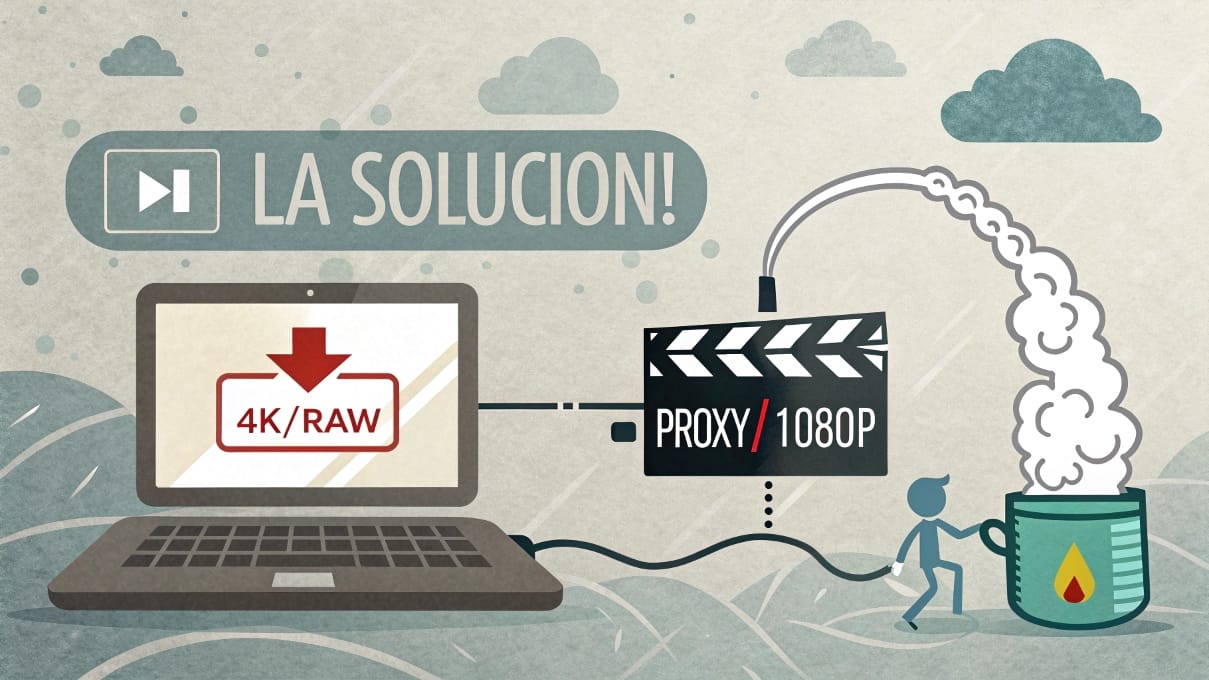
The solution is a technique called proxy workflow, which can make your editing dramatically smoother. At EdicionVideoPro we use proxies on practically every project that involves 4K or higher footage, and on any project where we need to stay efficient under deadline pressure. This guide explains exactly how they work and how to set them up.
What Are Proxy Files?
A proxy file is a lower-resolution, easier-to-play copy of your original footage. It contains the same content, matches the same timecode, and is stored alongside your originals in a linked structure your editing software understands. When you edit with proxies enabled, the software plays the lightweight versions. When you export, it automatically switches back to the originals to render the final video at full quality.
Think of it as a stand-in. While the original footage is like a raw film negative, heavy and requiring specialized equipment to view, the proxy is the contact sheet you actually use to make creative decisions. Once the decisions are made, the original goes through the process.
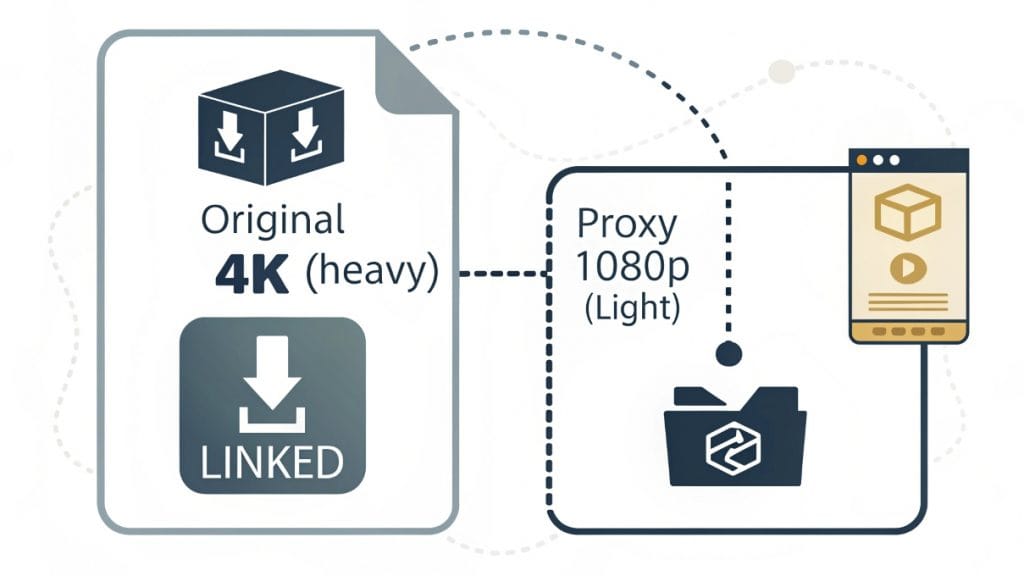
The key detail that makes this work is timecode. Every frame in your original footage has a unique address. The proxy file shares that exact same address structure. Your NLE uses those addresses to know where you made every cut, which means when you switch from proxy to original at export time, every edit lands in exactly the right place on the original file. Nothing moves. Nothing gets lost.
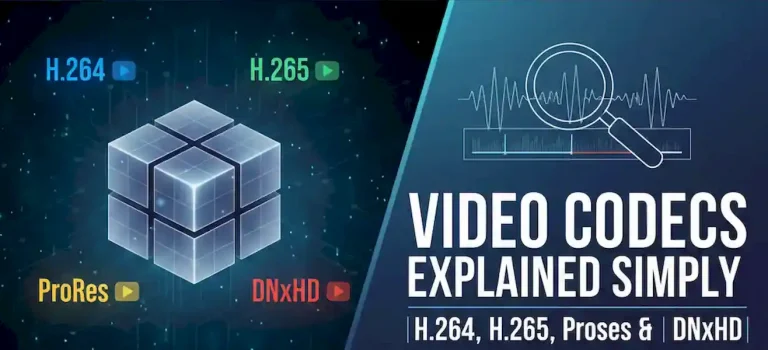
Why H.265 and RAW formats specifically cause lag: These codecs compress footage by referencing surrounding frames rather than storing each frame independently. Playing one frame requires decoding multiple frames simultaneously. Even fast computers struggle with this under the additional load of effects, color work, and multi-track timelines. Proxy codecs like ProRes store each frame independently, which makes them far less demanding to decode even though the files are larger.
The Advantages of Working with Proxies
Smooth playback at any resolution
The most immediate benefit. A timeline that previously stuttered through 4K H.265 plays back in real time with proxies. You can scrub, apply effects, and preview transitions without waiting for your computer to catch up.
Edit on hardware that would otherwise struggle
A mid-range laptop with 16GB of RAM can handle 6K footage smoothly with proxies. Without them, the same machine would be nearly unusable for editing at that resolution. Proxies democratize access to high-resolution editing.
Lower strain on your computer
Less decoding load means lower CPU and GPU temperatures, quieter fans, and less wear on your hardware during long editing sessions. On a laptop, it also means longer battery life.
Portable offline editing
Copy just the proxy files to a small external drive and edit away from your main workstation. An hour of 4K ProRes Proxy at 1080p might be 3 to 5 GB instead of 100+ GB for the originals. Reconnect the originals when you are back at your desk and ready to export.
No compromise on final quality
Your output quality is identical to editing directly with the originals, because export uses the originals. The proxies serve only the editing experience, not the delivery.
Collaborative flexibility
Send proxy files to an assistant editor or client for review without sharing terabytes of camera originals. The main editor can reassemble with originals when the creative work is done.
When Does It Make Sense to Use Proxies?
Not every project needs them. If you are editing 1080p H.264 on a relatively modern computer, playback is probably fine without proxies. Here are the situations where they consistently make a real difference.
The Proxy Workflow Step by Step
The sequence is the same regardless of which software you use. The steps below describe the general process. Software-specific instructions follow in the next section.
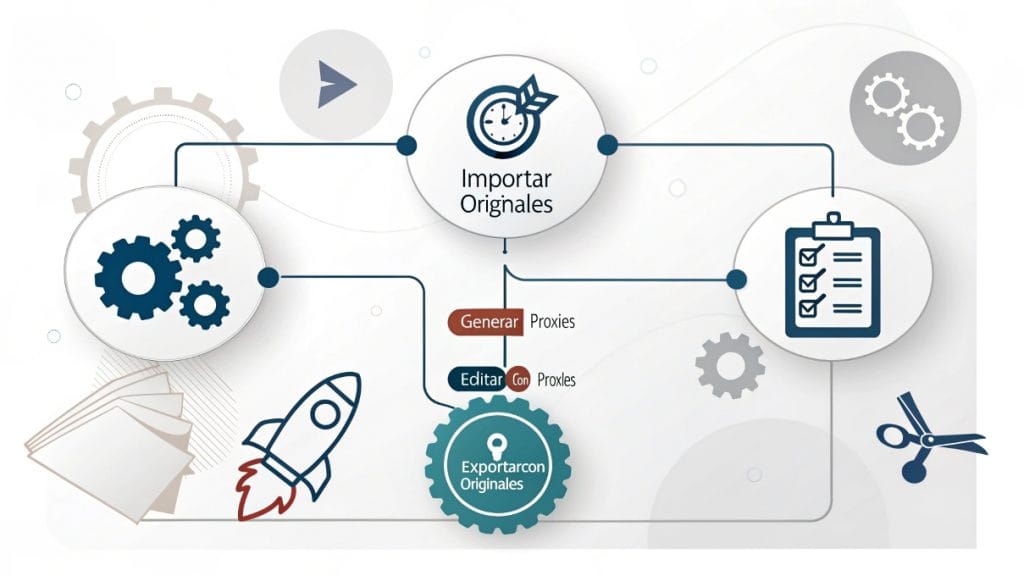
Import your original high-resolution footage
Bring your camera files into your project as normal. Do not transcode or convert anything at this stage. The originals need to stay in their native format so the software can reference them accurately at export time.
Generate proxy files
Use your software’s built-in proxy creation tool to generate lower-resolution copies. Choose a proxy codec optimized for editing rather than delivery (ProRes Proxy or DNxHR LB are the standard choices) and a resolution that gives you smooth playback without being unnecessarily small. For 4K originals, 1080p proxies are a good default. For 6K or higher, 720p is reasonable.
This process takes time. For an hour of 4K footage on a mid-range computer, expect 1 to 3 hours of generation time. Start it before a break or let it run overnight.
Enable proxy display in your NLE
Once generation is complete, tell your software to use the proxy files for playback. In most NLEs this is a toggle button or a setting in the viewer options. When enabled, you will see a quality difference in the monitor (the image looks less sharp than the original) but playback will be smooth.
Edit as you normally would
Make all your cuts, apply effects, add color, mix audio, and build your timeline using the proxy files. Every edit decision is recorded against the original timecode, so the proxy itself is just a display stand-in. Your actual creative work is being applied to the clip data, not the proxy image.
Disable proxies before export
When exporting the final video, make sure your software is set to use the original files. In most NLEs this happens automatically when you disable the proxy toggle. Verify that your originals are connected and accessible on the drive. The export will render at full original resolution and quality.
Setting Up Proxies in Your Software
Proxy → Create ProxiesEnable Proxies on. Or add the Proxy toggle button to your toolbar via the Button Editor.Ingest option: You can also set Premiere to create proxies automatically on import via the Ingest Settings in the Project panel. Check the Create Proxies checkbox under the Ingest tab.
File → Generate Proxy Media. Final Cut generates ProRes Proxy files automatically.Window → Background Tasks).Proxy.Optimized/Original before sharing or exporting.Optimized Media: Final Cut also offers Optimized Media (File → Generate Optimized Media), which transcodes to ProRes 422 at full resolution. This uses more storage than proxies but gives better quality during editing for cases where you need to see accurate color while grading.
Generate Proxy Media.File → Project Settings → Master Settings), you can set the proxy format and location under Working Folders.Playback → Proxy Mode → Enable Proxy.Playback → Timeline Proxy Resolution → Half Resolution or Quarter Resolution for faster playback without generating separate proxy files. This approach uses more CPU than true proxies but requires no extra storage.Playback → Proxy Mode. Resolve will use originals for rendering automatically.Free vs Studio: Both DaVinci Resolve Free and Studio support proxy generation. The free version handles all standard proxy workflows without restriction.
Choosing the Right Proxy Codec and Resolution
The goal is the most efficient playback with the least decoding overhead. Editing-optimized codecs store frames independently, which is the opposite of how H.265 and RAW formats work. Here is a practical comparison of the main options.
| Codec | Platform | File Size | Playback Load | Best for |
|---|---|---|---|---|
| Apple ProRes Proxy | Mac (Windows supported in most NLEs) | Low | Very low | Standard proxy choice on Mac. Industry standard. |
| DNxHR LB | Windows (Mac supported) | Low | Very low | Windows-native equivalent to ProRes Proxy. Common in Avid and Premiere on Windows. |
| H.264 (low bitrate) | Cross-platform | Very low | Moderate | When storage is very limited. Less efficient to decode than ProRes or DNx, but much better than native camera H.265. |
| GoPro CineForm | Cross-platform | Medium | Low | Good cross-platform option in Premiere. Larger files than ProRes Proxy but widely compatible. |
What resolution to choose
For 4K originals
1080p (1920×1080) proxies are the practical standard. You still see enough detail to make precise cut decisions, and the file size savings over the originals are significant.
For 6K or 8K originals
720p (1280×720) or 1080p both work. If your computer still stutters at 1080p proxy from 6K originals, drop to 720p. The lower image quality during editing is a worthwhile tradeoff for smooth playback.
For RAW formats
Start with 1080p ProRes Proxy. RAW formats benefit most from proxies because the decoding overhead is so high. Even a 1/4 resolution proxy can be a dramatic improvement over editing native RAW.
Things to Keep in Mind
Proxy workflow is not complicated, but there are a handful of practical considerations worth knowing before you start.
Storage planning: Proxy files need somewhere to live. A rough estimate: ProRes Proxy at 1080p uses approximately 1.5 to 3 GB per hour of footage at standard camera frame rates. Plan your storage accordingly before starting a large project. Most editors keep proxies on the same drive as the project file and originals, in a dedicated Proxies subfolder.
Generation time: Creating proxies for a large project takes time. Building this into your workflow rather than treating it as an interruption makes it painless. Start generation when you sit down to review footage for the first time, before you start cutting. By the time your selects review is done, so are most of the proxies.
Originals must be available at export: The proxy files do not contain the image quality you will deliver. Your software needs the originals accessible at export time. If you are editing with only proxies on a laptop, remember to reconnect the original drive before starting your final render.
Color grading with proxies: For rough cut work, proxies are fine for color decisions. But for precise color grading, especially with LOG footage or HDR work, you should switch back to originals. The proxy’s lower color depth and reduced dynamic range can make grading decisions that look correct on proxy land differently on the original. Do all final color work with originals enabled.
Frequently Asked Questions
No. During editing you see the proxy image, which is lower resolution than your originals. But when you export, your software automatically uses the original high-resolution files to render the final video. Your delivery quality is identical to what you would get editing directly with the originals. The proxy only affects what you see during the editing session, not what goes into the exported file.
Not always, but often still useful. Even high-end computers can struggle with 6K, 8K, or RAW formats under complex timelines with multiple layers and effects active. Proxies free up processing resources that can go toward real-time color correction and effects instead of raw file decoding. Many professional editors use proxies as standard practice regardless of hardware because the workflow advantage is real even when performance is not technically the issue.
For codec, Apple ProRes Proxy is the industry standard on Mac and is supported in most NLEs on Windows as well. DNxHR LB is the common Windows-native alternative with similar characteristics. Both are designed specifically for playback efficiency. For resolution, 1080p works well for 4K originals. If you are still seeing lag at 1080p proxy, drop to 720p. The goal is smooth playback, not maximum proxy quality.
Not for basic cutting work. This is one of the practical advantages of the proxy workflow: you can take just the proxy files on a small drive and edit away from your main workstation without carrying terabytes of originals. The limitations are two: you cannot do precise color grading on proxies because they lack the color depth and dynamic range of the originals, and you will need the originals reconnected before your final export render.
It varies by codec and resolution. ProRes Proxy at 1080p runs approximately 1.5 to 3 GB per hour of footage at standard frame rates. Compare that to 4K H.265 from a camera, which might be 30 to 100 GB per hour depending on bitrate. In practice, proxies typically use between 5 and 20 percent of the space your original footage takes up, making the storage cost very manageable relative to the performance benefit.
Yes, fully. DaVinci Resolve Free supports both proxy generation (right-click clips in the Media Pool and select Generate Proxy Media) and the Timeline Proxy Resolution option under the Playback menu. The free version has no restrictions on proxy functionality. The Studio version adds more generation options and better performance on some formats, but the core proxy workflow works identically in both.
A rough estimate: generating ProRes Proxy at 1080p from 4K H.265 footage takes approximately 1 to 3 times the duration of the source footage on a mid-range computer. An hour of footage might take 1 to 3 hours to proxy. Hardware acceleration, faster storage, and more powerful CPUs reduce this significantly. The practical approach is to start proxy generation when you first import footage, before you begin reviewing it, so the generation runs in the background while you do your initial work.
Both are transcoded versions of your original footage. The difference is in the goal. Optimized media, also called intermediate transcodes, converts to a high-quality codec like ProRes 422 HQ at the original full resolution. It gives better image quality during the edit but uses much more storage. Proxies are lower resolution and specifically designed for playback performance, not editing quality. Use optimized media when you need full resolution while grading. Use proxies when storage is limited, when you need portability, or when playback performance is the main priority.
Heavy Footage? Leave the Technical Side to Us
Proxy workflow is valuable to understand, but it adds steps to your process. At EdicionVideoPro we handle any format and resolution with optimized workflows already in place. You send the footage. We handle the rest.