Color grading: what it is and how to grade video
Color grading is the creative use of color to give a video a consistent look and visual intention. Before building a look, prepare the footage correctly and balance exposure, white balance and differences between shots. A preset alone cannot make unrelated images feel like the same scene.
Color grading vs. color correction
| Task | Purpose | Example |
|---|---|---|
| Color correction | Build a consistent technical starting point. | Compensate for a shot that is too dark or has an unintended tint. |
| Shot matching | Preserve continuity across angles. | Stop skin tones changing from warm to greenish at the next cut. |
| Color grading | Create a visual and narrative intention. | Give a sequence a warm atmosphere while keeping skin believable. |
These decisions interact, and you may need to revisit an earlier adjustment. Separating their purposes helps you identify whether a problem comes from the source or the creative treatment.

Prepare the footage before creating a look
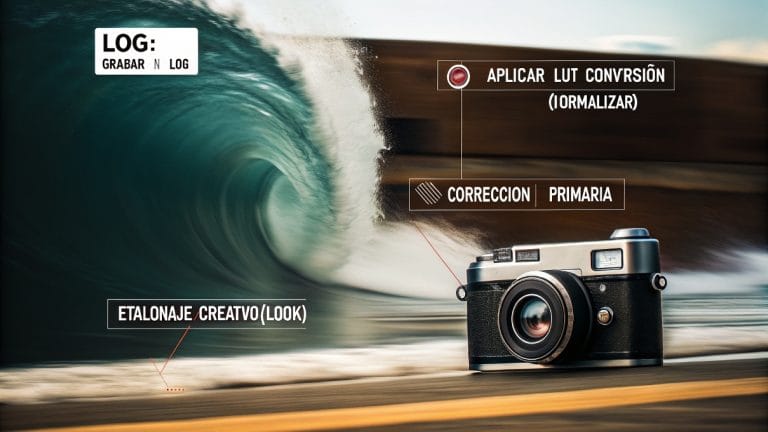
- Identify the input: check the camera profile, color space and required delivery. Log footage needs an appropriate transformation within the project’s color pipeline.
- Avoid duplicate transforms: determine whether the editor already normalizes the image before adding a technical LUT. Two conversions can produce unintended contrast and saturation.
- Keep viewing conditions stable: avoid automatic brightness changes and display filters while comparing shots. Color-critical delivery requires suitable monitoring.
- Choose a relevant reference: compare similar lighting and story intentions. A night-scene look will not transfer directly to a daytime ceremony.
The distinction between technical conversion and style is covered in our guide to LUTs for video.
Understand the tools before adding more adjustments
| Tool | Useful for | Watch out for |
|---|---|---|
| Waveform and RGB parade | Inspecting luminance and channel relationships. | Correcting by isolated numbers without considering the scene. |
| Color wheels | Shaping shadows, midtones and highlights. | Shifting all skin tones while trying to change only a background. |
| Curves | Refining contrast or particular ranges. | Crushing shadows or clipping highlights unintentionally. |
| HSL controls and masks | Adjusting a color or region selectively. | Noisy selections, visible edges and tracking that fails in motion. |
Controls differ between editors. The official Premiere color workflow is a useful reference for its tool layout.
A practical color grading workflow
- Choose a representative shot. Start with useful lighting and skin tones that can guide the rest of the scene.
- Prepare and balance the image. Confirm the input transform, then adjust exposure and white balance. Do not assume missing recorded detail can be recovered.
- Match adjacent shots. Compare skin, backgrounds and perceived contrast across cuts. Copying every setting to a different camera is not a substitute for checking it.
- Develop the look. Decide whether the scene needs warmth, restrained contrast or another quality. Make small changes and compare with the image without creative treatment.
- Protect important colors. Check skin, clothing and brand colors. Limit an adjustment when a global change damages an important subject.
- Review motion and export a sample. Check masks, changing light and consistency throughout the sequence, then inspect the delivered file.
Example: warmth without orange skin
Practice scenario: imagine a warmly lit reception where one camera recorded faces as too orange. Correct the unwanted cast first, then decide how much warmth belongs in the scene. Increasing every orange value does not necessarily make the image more welcoming.
Our approach at Edición Video Pro is to support the memory and the client’s style. In a wedding video, the dress, flowers and skin tones matter alongside the overall atmosphere. Consistent color lets the viewer focus on what is happening.
Common color grading mistakes
- Creating the look before checking input transforms and basic balance.
- Forcing a complementary-color look onto every location.
- Applying the same grade to cameras with different profiles or exposure.
- Using saturation to make the image striking without checking skin and bright objects.
- Approving one attractive frame without reviewing the full sequence.
When comparing versions, change one part of the treatment at a time. Keep a reference version and review a sequence long enough to include angle and lighting changes. This makes it easier to see whether the look actually improves the edit.
Color grading questions
Is color grading the same as color correction?
They are related but have different purposes. Correction establishes a usable, consistent base; grading develops the look. Some workflows use “grading” as an umbrella term for both.
Can I grade footage that was not recorded in Log?
Yes. Adjustment latitude depends on the material and the recording. Do not apply a Log conversion to an image that is already normalized.
Do I need LUTs for color grading?
No. You can work with color controls. A compatible LUT can be a starting point, but it does not replace shot correction or matching.
Is there one setting for a cinematic look?
No. Lighting, exposure, composition and the recorded image influence the result. Choose a treatment that fits the story rather than relying on a universal preset.
Need help editing your project?
Edición Video Pro provides remote post-production for events, creators and businesses. Tell us what you recorded, what you need to deliver and the style you want so we can define the scope and a tailored quote.
Discuss my projectView editing workUpdated October 24, 2026. A guide by Edición Video Pro.