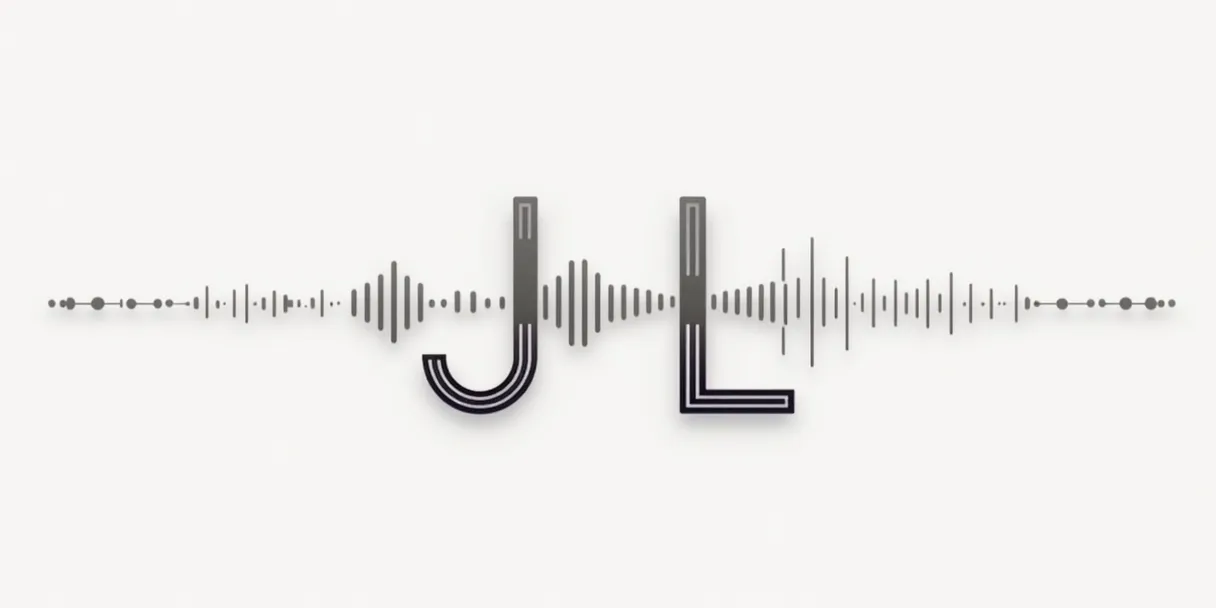
Explicación visual de qué son los J-Cuts y L-Cuts en edición de vídeo.

J-Cuts and L-Cuts: Professional Audio Transitions Guide

J-Cuts and L-Cuts: The Secret to Professional Audio Transitions

Two techniques that take maybe ten minutes to learn and a lifetime to get right. Once you understand them you will start noticing them in every well-edited video you have ever watched.

J-cuts and L-cuts audio editing timeline visualization
‘);”>

Why This Changes How Your Videos Sound

Watch any well-edited interview, documentary or narrative film and pay attention to the moment when the camera switches from one person to another. In most cases, you will notice that the audio from the next person starts a fraction of a second before you see their face. Or that you are still hearing someone speak while the camera has already moved to show something else. That is not an accident. It is J-cuts and L-cuts at work.

The names sound technical but the concept behind them is simple. In a normal cut, the video and audio change at the exact same frame. In a J-cut or L-cut, one of them arrives a little earlier or stays a little longer than the other. That small offset is what makes dialogue feel like a real conversation instead of two people alternating on a stage.

At EdicionVideoPro, these techniques are part of every project that involves dialogue, interviews, or scene transitions. Not because they are required, but because any editor who has used them once understands immediately that going back to straight cuts on every dialogue exchange feels like a step backwards. This guide covers what they are, how to do them in the most common software, when to use each one, and the mistakes that make them work against you instead of for you.

What Are J-Cuts and L-Cuts?

When you place two clips side by side on a timeline, they normally share a cut point where both video and audio change at the same time. This is called a hard cut or straight cut, and it is the default behavior of every editing program.

J-cuts and L-cuts separate those two events. They are different because they let the audio and video make their transitions at different moments. The visual names come from what the clips look like on a timeline when you do this.

The J-Cut: Audio Arrives First

The audio from the next clip starts playing while you are still looking at the end of the previous clip. The video catches up a moment later. On the timeline this creates a shape that looks like the letter J because the audio track extends to the left underneath the outgoing clip.

The effect is that the viewer hears what is coming before they see it. This creates a subtle pull toward the next scene and makes the transition feel deliberate rather than mechanical.

Best situations for a J-cut:

  • Introducing a new speaker before cutting to their face
  • Bringing in the sound of a new location before the image changes
  • Building anticipation about what the viewer is about to see
  • Smoothing an otherwise abrupt location or scene change

J-Cut on the Timeline

VIDEO: [====== Clip A ======][====== Clip B ======]
AUDIO: [==== Clip A ====][====== Clip B ======]
Audio from B starts before the video cuts

Real example: In an interview, you hear the next question begin while the camera is still showing the previous answer. The audio leads you into the next exchange.

The L-Cut: Audio Stays Behind

The video moves to the next clip while the audio from the previous clip keeps playing for a moment. On the timeline the audio from Clip A extends to the right under the beginning of Clip B, which forms the shape of the letter L.

The most common use is showing a reaction. You see the listener’s face while still hearing the speaker finish their sentence. This is used constantly in interviews and narrative films because it reveals information about both characters at once without interrupting the dialogue.

Best situations for an L-cut:

  • Showing a listener’s reaction while someone is still speaking
  • Letting ambient sound from one location bridge into the next scene
  • Finishing a sentence or thought while introducing a new visual
  • Making a conversation feel less like a ping-pong match between two faces

L-Cut on the Timeline

VIDEO: [====== Clip A ======][====== Clip B ======]
AUDIO: [========= Clip A =========][= Clip B =]
Audio from A continues after the video cuts to B

Real example: Person A is still talking while the camera cuts to show Person B’s expression. You hear A finish the sentence while watching B react to it.

See the Difference: Interactive Demo

Choose a cut type to see how the timeline looks

Normal Cut (Hard Cut)

Both video and audio change at exactly the same frame. Clean, direct, and sometimes abrupt. Works well for fast-paced content and clear question-answer exchanges. Can feel mechanical in emotional or conversational scenes.

Video: [———- Clip A ———-][———- Clip B ———-]
Audio: [———- Clip A ———-][———- Clip B ———-]
Both tracks cut at the same point. Simple and predictable.

Why Editors Use These Techniques

Split edits are not a stylistic flourish. They solve real problems that straight cuts create in dialogue-heavy and narrative content.

????

Conversations sound real

In real life, our ears hear someone start speaking before our eyes fully lock onto them. Split edits reproduce that natural lag and make dialogue feel less staged.

Editing becomes invisible

The best editing is the kind viewers do not notice. Split edits remove the abruptness that makes audiences aware a cut happened, keeping them inside the story or conversation.

????

Reactions become part of the story

An L-cut lets you show how someone responds to information while still hearing the words being said. This double layer of information is something a straight cut cannot deliver.

????️

They fix problems straight cuts create

Sometimes a visual cut is necessary at a point where the audio would jump awkwardly. A split edit lets you make the cut where the picture needs it while letting the audio move more smoothly.

How to Create J-Cuts and L-Cuts

The process is the same in any editing software. The menu names and keyboard shortcuts differ, but the underlying steps do not.

1

Place your clips on the timeline

Put Clip A and Clip B side by side in the sequence. The cut point between them is where both the video and audio currently change at the same time. That is what you are going to split.

2

Unlink audio from video

By default, audio and video in a clip move together. Right-click on the clip and look for Unlink, Detach Audio, or Expand Audio. Once unlinked, each track can be trimmed independently.

  • J-Cut: Drag Clip B’s audio to the left, so it starts under Clip A
  • L-Cut: Drag Clip A’s audio to the right, so it extends under Clip B
3

Listen and adjust the overlap

Play the transition with your eyes closed and just listen. If it sounds natural, the timing is right. If something feels off, move the audio edge a few frames in either direction and listen again. Most effective overlaps are between half a second and two seconds.

4

Check the audio levels

When two audio clips overlap, their volumes combine. If the outgoing audio is too loud it will muddy the incoming audio. Add a short fade out on the outgoing audio and a short fade in on the incoming one. This is usually enough to make the overlap clean.

EdicionVideoPro tip:

Start practicing with a simple two-person conversation. Record two people talking, cut between them on every line, and then go back and add L-cuts to show the listener’s reaction while the other person is still speaking. Play it back and compare it to the version with straight cuts. The difference is immediately obvious and that is usually enough to make split edits a permanent part of your workflow.

How to Do It in Your Software

The concept is identical in all of them. The interface is different.

DaVinci Resolve
  • Right-click the clip and choose Change Clip Speed or use the Unlink Clips option
  • In the Cut or Edit page, switch to Trim Edit mode
  • Hover over the audio edge of the clip until the trim cursor appears
  • Drag the audio in/out point independently from the video
  • Use Alt + drag on the audio track to move it without affecting the video
Adobe Premiere Pro
  • Select the clip, right-click and choose Unlink
  • Shortcut: Ctrl+L (Windows) or Cmd+L (Mac)
  • Switch to the Rolling Edit tool (N) to trim the audio independently
  • Hold Alt while dragging to select only the audio or video portion
  • Use the Trim panel for frame-accurate adjustments
Final Cut Pro
  • Select the clip and go to Clip > Detach Audio
  • Or use the shortcut Ctrl+Shift+S
  • The audio appears as a separate clip you can move freely
  • Use Blade Speed tool for precise audio edge trimming
  • The Expand Audio view shows audio and video tracks separately without fully detaching
CapCut Desktop
  • Click on the clip in the timeline and look for Detach Audio in the right panel
  • The audio track separates and can be trimmed independently
  • Drag the audio edge past the video cut point to create the overlap
  • Precision is more limited than desktop NLEs but basic split edits are achievable
  • Not available in the mobile version with the same level of control

When to Use Each Type

Use a J-Cut when…

  • You want to introduce a voice before the face. Hearing who is speaking before seeing them creates a subtle information hierarchy that feels natural.
  • You are cutting to a new location. Bringing in the ambient sound of the new place before the image changes helps the viewer orient to where they are going.
  • You want to build anticipation. A question heard before the camera shows who is asking it creates a brief moment of expectation.
  • A straight cut feels too abrupt. If a scene change hits too hard, a J-cut softens it by letting the audio from the next scene prepare the viewer.

Use an L-Cut when…

  • You want to show a reaction. Cutting to the listener’s face while the speaker finishes their sentence reveals both what is being said and how it is being received.
  • You are cutting away from a talking head. Rather than sitting on someone’s face for a long answer, cut to B-roll while their voice continues. The information keeps flowing while the visual keeps moving.
  • You want ambient sound to carry across scenes. Letting the sound of a location bleed into the next shot before that location’s audio takes over avoids a jarring audio hard cut.
  • Dialogue is being cut with B-roll. Every time you cut from a talking head to illustrative footage, the audio from the speaker should continue as an L-cut while the B-roll plays.

Common Mistakes to Avoid

Overlapping too much

A two-second overlap usually works. A four-second overlap often creates confusion because the viewer is hearing one thing and seeing something that has already moved on. Keep the overlap short enough to feel like a breath, not a gap.

Two voices competing

If both clips have dialogue and you do not handle the volume carefully, the overlap will sound like two people talking at the same time. Always fade out the outgoing audio during the overlap unless the overlap is intentionally very short, just a few frames.

Using them out of habit, not intention

A straight cut is the right choice for fast exchanges, punchy dialogue, and quick back-and-forth rhythm. Not every dialogue cut needs to be a split edit. Use them where they serve the pacing, not on every single cut in the sequence.

Forgetting to check levels after unlinking

When you unlink audio and move it, editing software does not automatically adjust levels or add fades. The transition can suddenly be louder than expected if two audio tracks are playing simultaneously without any attenuation. Always check the audio meter when playing back a split edit for the first time.

Overlapping the wrong part of the audio

If the outgoing speaker is mid-sentence and you overlap with the incoming speaker who is also mid-sentence, the result is incoherent. The overlap should happen at a natural pause or breath, not in the middle of a thought. Listen for the rhythm of the conversation and place the split edit at a moment that does not fight the words.

Skipping the listening test

Most editors close their eyes for a moment, play the transition, and trust their ears. Watching the screen while listening pulls your attention toward the visual and you miss audio issues. The first pass on any split edit should be an audio-only check with your eyes closed.

Frequently Asked Questions

Real questions from editors at different stages. Answered without the jargon.

Do I need professional software to create J-cuts and L-cuts? +

No. Most editing programs, including free options like DaVinci Resolve and CapCut Desktop, support audio and video unlinking. The steps differ by software but the concept is identical in all of them. DaVinci Resolve calls it Unlink Clips. Premiere Pro uses Unlink. Final Cut Pro uses Detach Audio. The result is the same in every case.

Are J-cuts and L-cuts only used for dialogue? +

Not at all. Dialogue is where they are most visible but they work just as well with ambient sound, music, and sound effects. A J-cut that brings in the ambient noise of a new location before the image changes is a standard documentary technique. An L-cut that lets music from one scene carry into the opening frames of the next is used constantly in narrative film. Any time audio can do useful storytelling work before or after a visual cut, a split edit is worth considering.

How long should the audio overlap last? +

There is no fixed rule. In dialogue editing the overlap is usually between half a second and two seconds. In music or ambient sound transitions it can be longer. The practical test is to close your eyes and listen. If you notice the edit, the timing needs adjustment. If the audio feels like a natural continuation, it is probably right. Start with a one-second overlap and move from there based on what you hear.

What is the difference between a J-cut and a split edit? +

Split edit is the umbrella term. Both J-cuts and L-cuts are types of split edits because in both cases the audio and video cuts happen at different points in time. The J-cut is a specific split edit where audio leads the video. The L-cut is a specific split edit where video leads the audio. When someone says split edit without specifying, they usually mean one of these two.

Can I use J-cuts and L-cuts in mobile editing apps? +

Some mobile apps support basic audio-video unlinking, but the precision available on mobile is significantly less than on desktop. CapCut’s mobile version allows some audio manipulation. VN Video Editor also supports independent audio trimming. For projects where dialogue editing really matters and you need frame-accurate control, a desktop editor is the right tool. Mobile works for quick social content where a few-frame imprecision does not affect the viewer’s experience.

Why does my L-cut sound like two people talking at once? +

This is the most common problem beginners run into. When both clips have dialogue and the volumes are not handled during the overlap, they stack and create the double-voice effect. The fix is simple: add a short fade out on the outgoing audio so it decreases in volume as the incoming audio takes over. Even a 3 to 5 frame fade is usually enough. You can also manually lower the outgoing audio’s volume during the overlap frames using keyframes in your editing software.

Should I use split edits on every cut in a dialogue scene? +

No, and this is an important distinction. A straight cut is the right choice for fast back-and-forth exchanges where a punchy rhythm is intentional. Over-applying split edits to every cut can actually slow the pace and make conversations feel sluggish. Use them at moments where a straight cut feels abrupt, where a reaction adds important information, or where the audio from the next scene can do storytelling work before the image arrives. The straight cut is still your primary tool.

Do these cuts affect the exported video file in any way? +

No. J-cuts and L-cuts are purely timeline decisions. They do not change the exported file format, codec, resolution, frame rate, or any technical specification of the final video. The export process renders the timeline exactly as it plays in your editor, including the audio and video offset you created. The only thing that changes in the exported file is what the viewer hears and sees.

How do I know if a J-cut or L-cut sounds natural? +

Close your eyes and play the transition. If it sounds like a natural conversation with no jarring jump, the edit is working. If something feels disconnected or confusing, adjust the overlap. Getting feedback from someone who has not seen the raw footage is also useful because they have no reference for what a bad cut sounds like and will react purely to the result. If they notice nothing unusual about the audio, you got it right.

Can I use J-cuts and L-cuts together in the same scene? +

Yes, and this is actually how most professionally edited dialogue scenes work. An L-cut shows Person B’s reaction while Person A finishes speaking. Then a J-cut brings in Person A’s response a moment before the camera cuts back to them. Alternating between J-cuts and L-cuts within the same conversation creates a natural, layered feel that never settles into a predictable pattern. The key is that each one serves a specific purpose in that particular moment, not that you are applying a formula.

Small Technique. Significant Difference.

J-cuts and L-cuts are not advanced techniques reserved for experienced editors. They are simple timeline adjustments that take minutes to learn and immediately improve how dialogue sounds. Once you start using them, you will notice their absence in any edit that does not.

The process is straightforward: unlink the audio from the video, move one of them a little earlier or later, listen, and adjust. That is the entire technique. The skill comes from knowing when to use each one and how to keep the overlap clean. Everything else follows from practice.

Start with your next interview or conversation edit. Try one L-cut to show a listener’s reaction. Play it back. You will understand immediately why professional editors use these techniques on every project that involves more than one voice.

Want This Applied to Your Videos?

Knowing the technique is one thing. Having an experienced editor apply it to your interviews, documentary footage, or brand content is another. At EdicionVideoPro we use split edits and other professional audio techniques on every project that involves dialogue. The difference in how your videos sound and feel is immediate.

Get Professional Video Editing Free Consultation

Please rate

0 / 5

Your page rank:

Similar Posts